Configure Azure Pipelines app in ghe.com
I recently helped a client migrate from Azure DevOps to GitHub Enterprise Managed Users with Data Residency (ghe.com for short). And as part of the migration we rewired the exiting Azure Pipelines from the old repository located on Azure Repos to the new one on GitHub.


I recently helped a client migrate from Azure DevOps to GitHub Enterprise Managed Users with Data Residency (ghe.com for short). And as part of the migration we rewired the exiting Azure Pipelines from the old repository located on Azure Repos to the new one on GitHub.
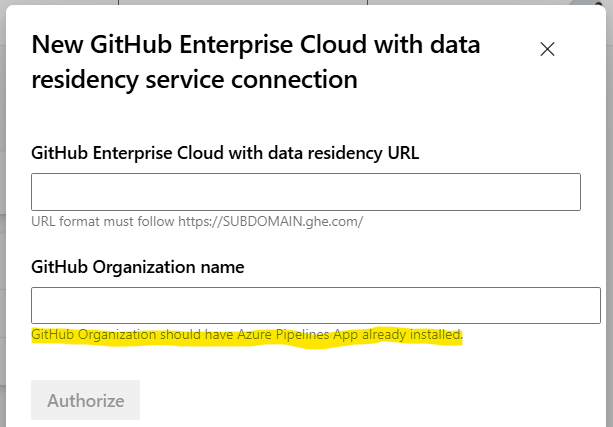
With GitHub Enterprise this is quite easy, create a new service connection in Azure DevOps and click the magic authorize button to install the app into GitHub automatically. Unfortunately no such luck in ghe.com, even though there is a special service connection type:

The screen mentions: "GitHub Organization should have azure pipelines app already installed", but there is no documentation anywhere on how to actually do that.
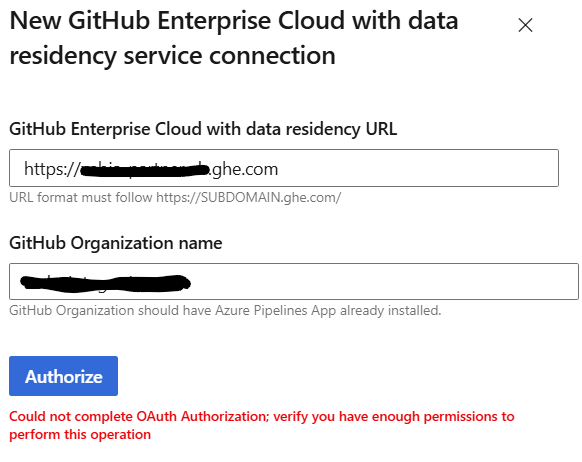
And unfortunately, it turned out we weren't the first to hit this snag. And the error message is not very helpful either:
I reached out to my contacts in GitHub and Azure DevOps to see if they knew what to do, but unfortunately, even they did not know.
I decided to play around some more and stumbled upon this well hidden url based on the url of the Azure Boards app by replacing boards with pipeline
https://{enterprise-slug}.ghe.com/apps/external-app/azure-boards
https://{enterprise-slug}.ghe.com/apps/external-app/azure-pipelines
And lo and behold, from this location you can install the Azure Pipelines app:

Click Install to and select your GitHub organization, after which the configuration of the service connection will work without a hitch:
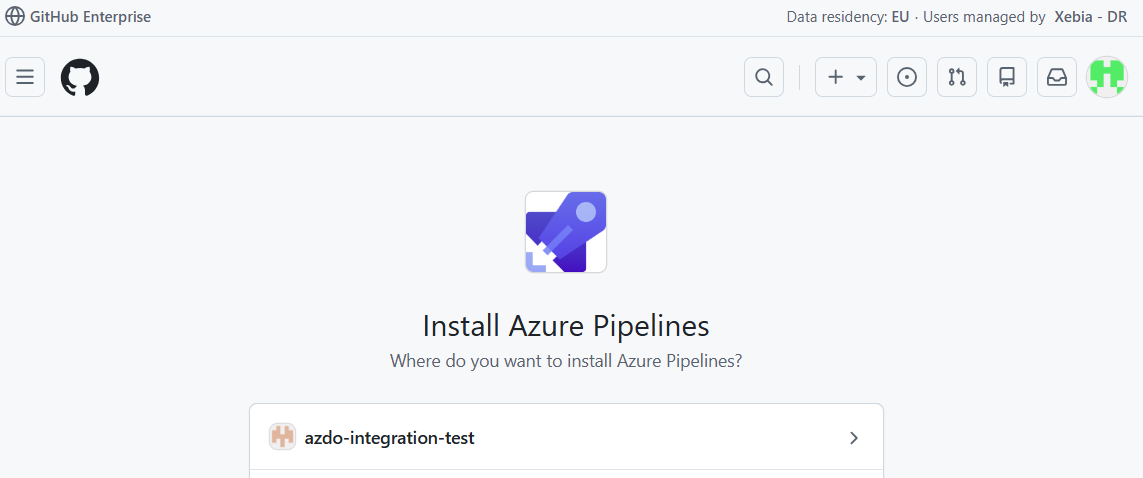
Select the repos you want to enable for Azure Pipelines:
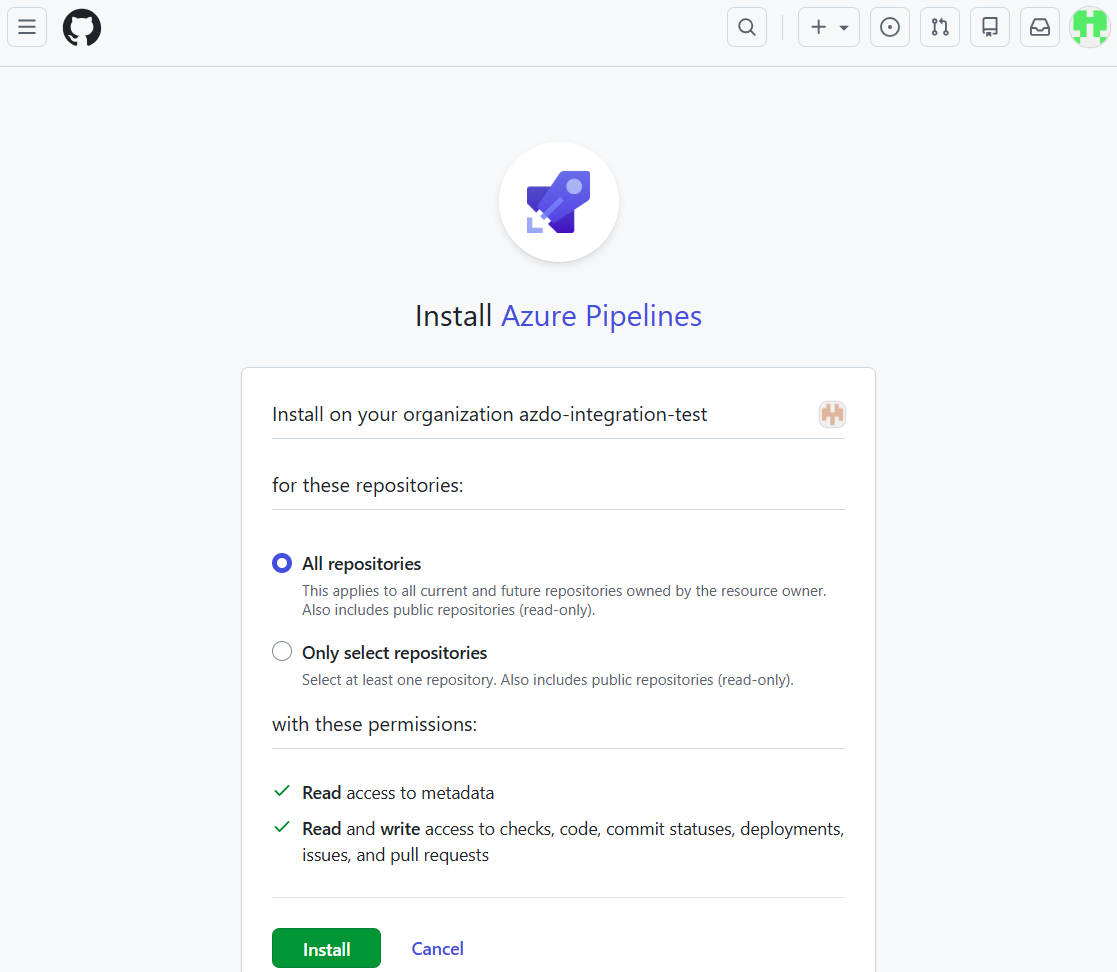
After which you are redirected to Azure DevOps to complete the installation:

If you now go back into the settings of your Azure DevOps Project, you should be able to create the new service connection:
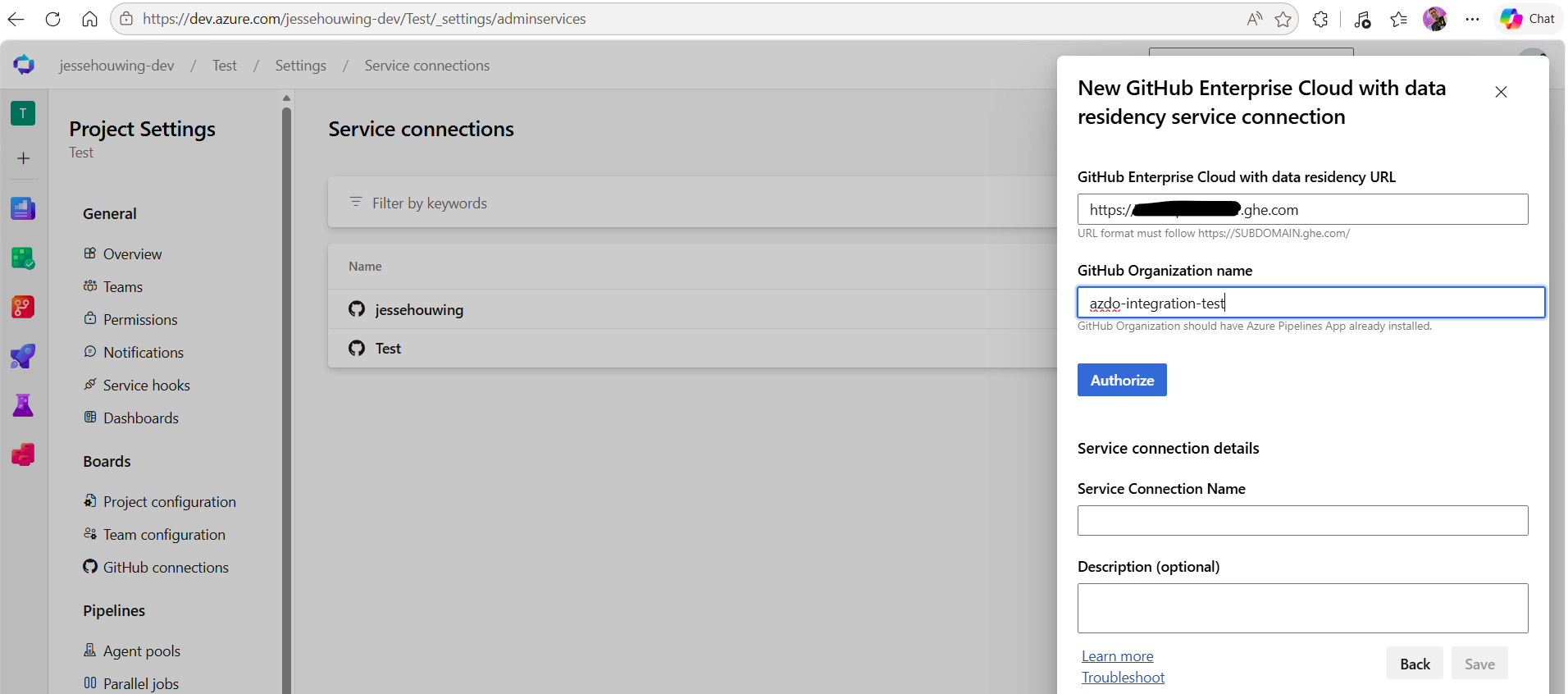
Click Authorize after which you'll be able to Save the new service connection.
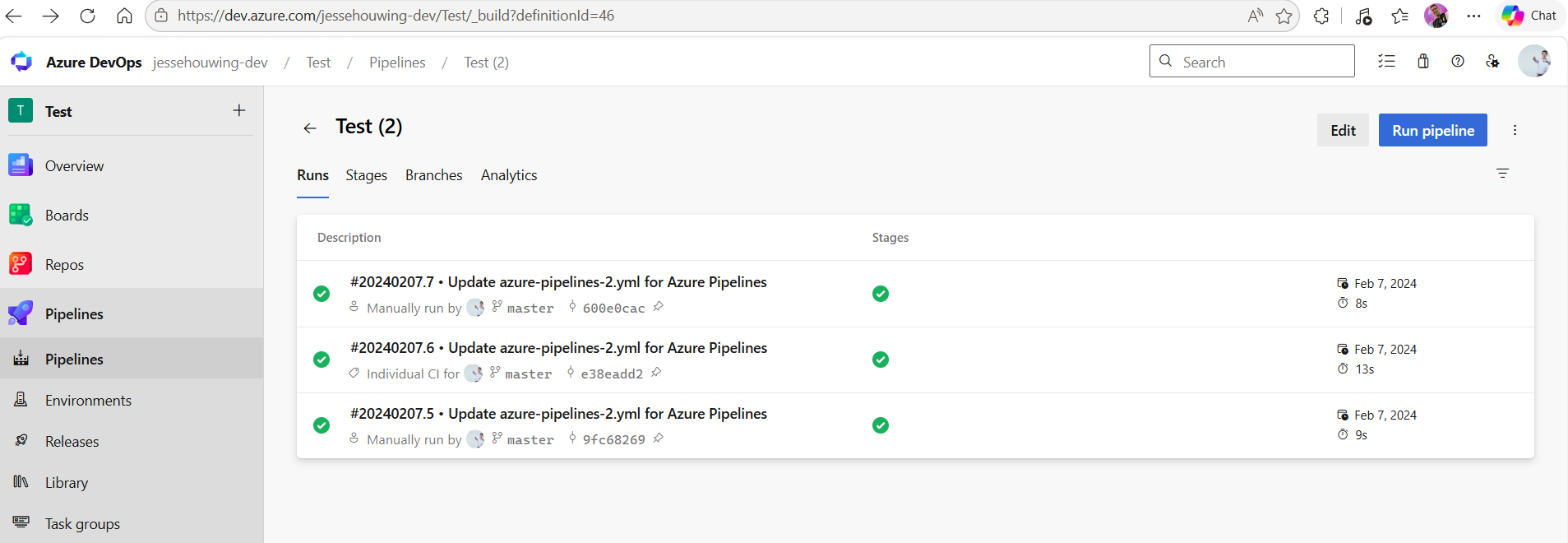
To rewire a pipeline, navigate to the pipeline you want to rewire and click Edit:
Click the ⁞ button and then select Triggers:
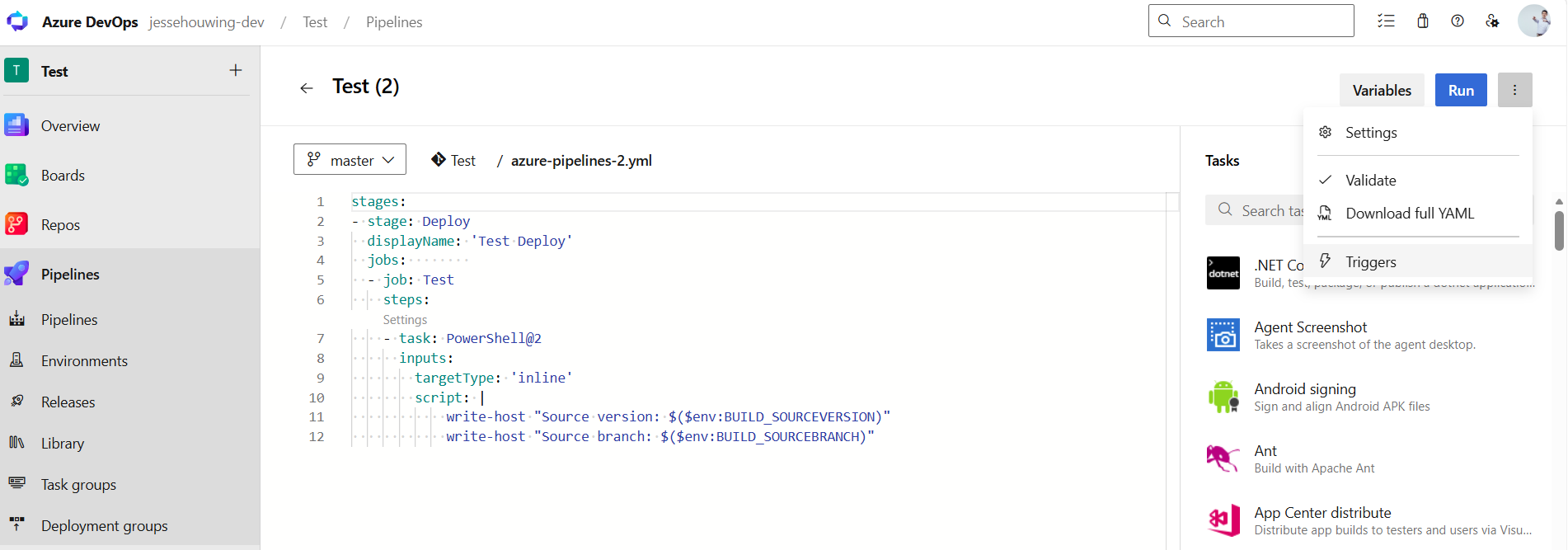
This brings you to the classic pipelines editor on which you can navigate to the YAML tab:
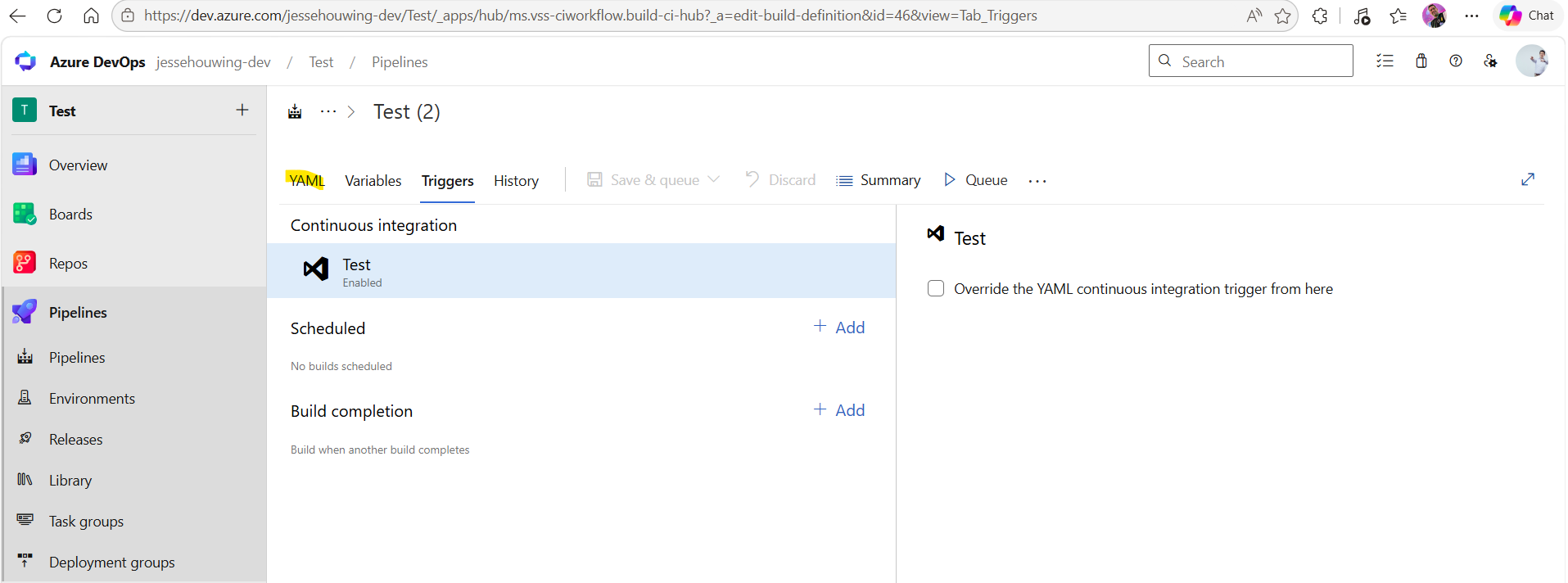
Select the Get Souces element in the pipeline
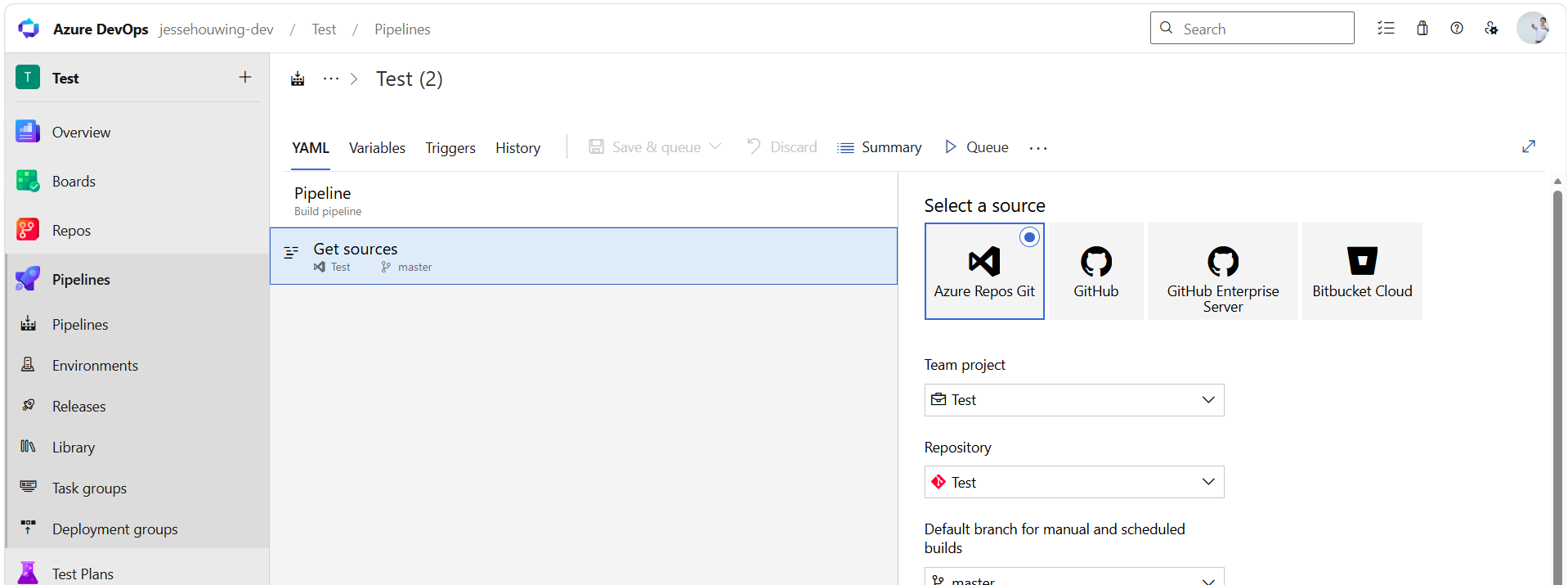
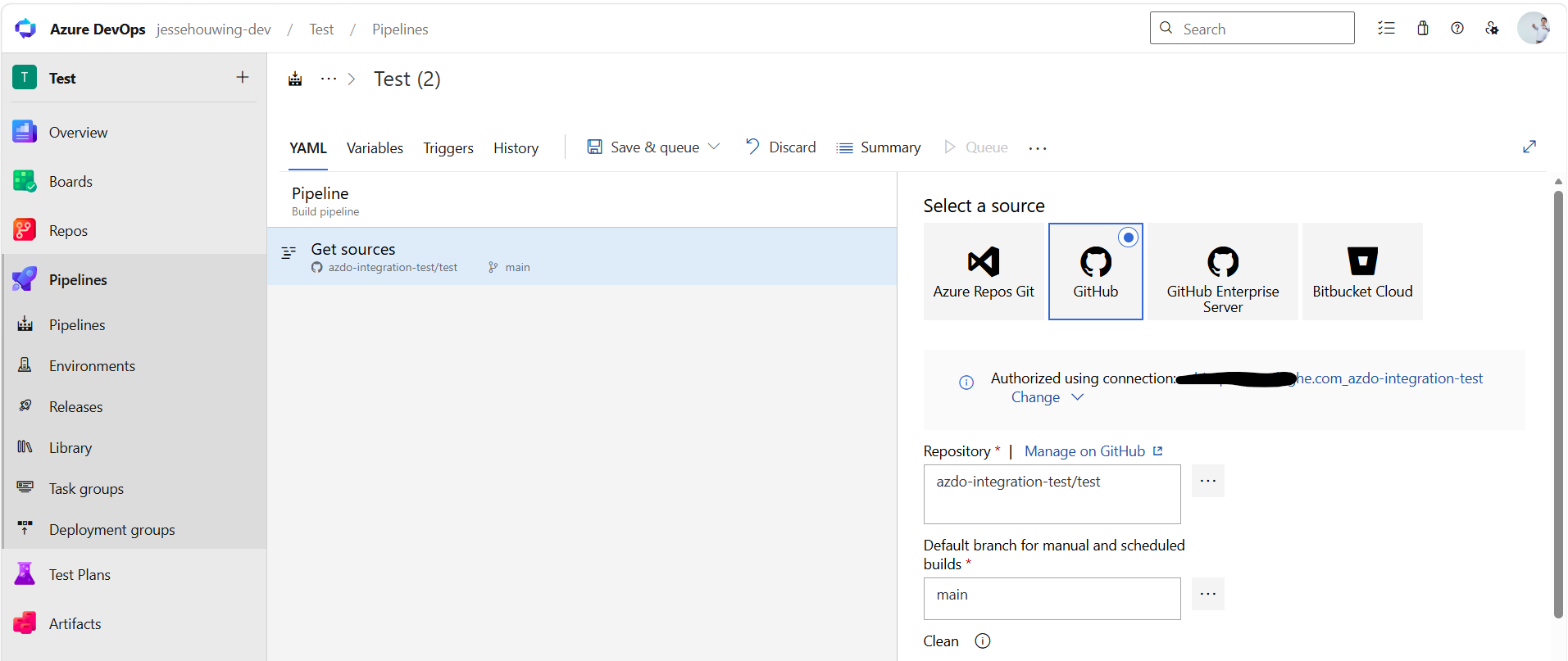
And rewire the pipeline to GitHub by selecting the GitHub tile and picking the Service Connection we previously created: